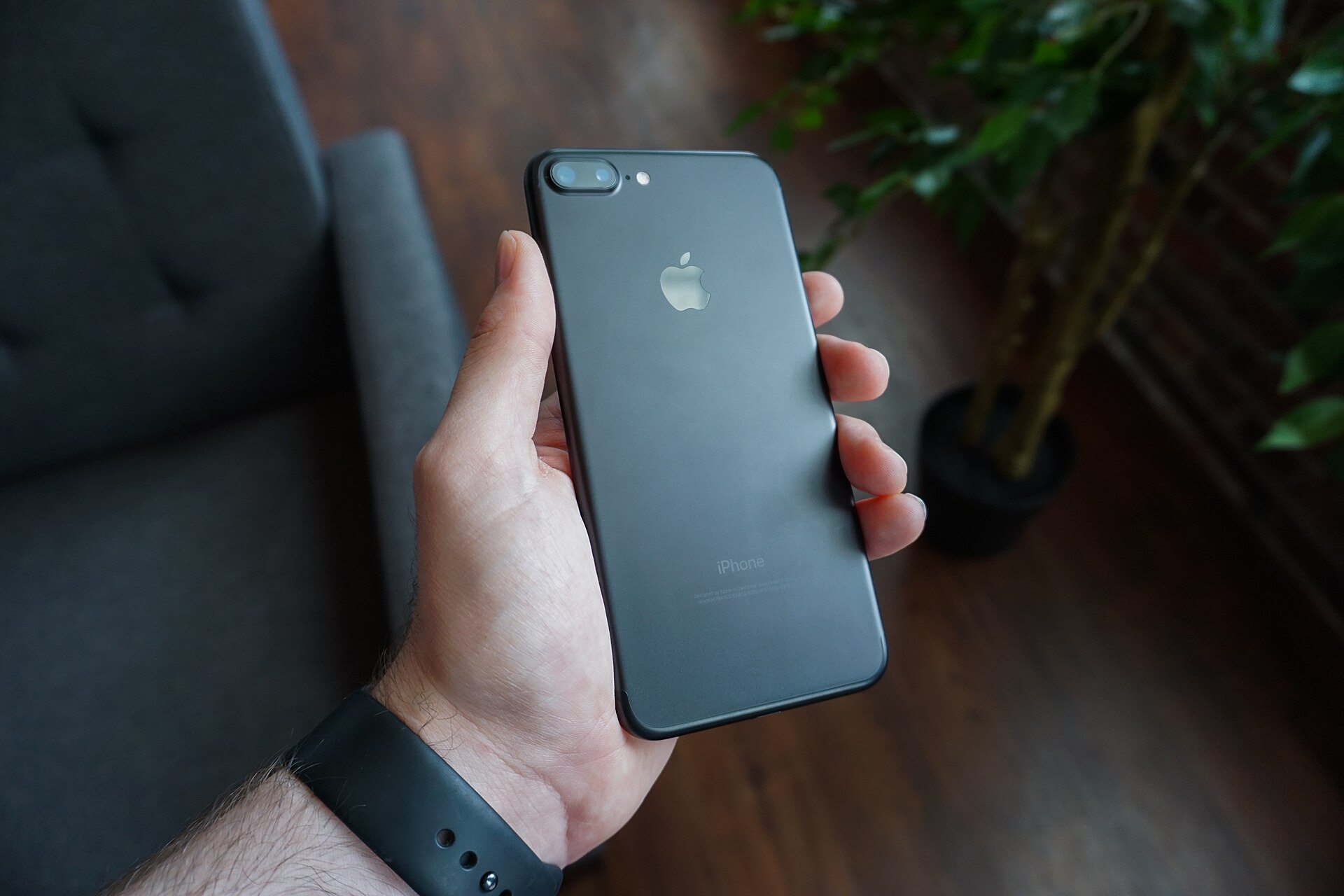
Quick answer. Photos, Messages attachments, then Offload Unused Apps. Check Settings → General → iPhone Storage first.
The phone is not 'broken'. The camera roll and old iMessage videos ate the disk.
MarketPalace Guide Center writes this as a solution walkthrough — the order we would use if we were in the room with you. We name the next click, then what to do if that click fails. We do not sell the TV, the kettle, or the plane ticket.
If a menu name on your set or phone does not match, use the closest wording and email hello@marketpalace.shop. We correct live pages when the path has moved.
What you need
- A few minutes in Settings
- Optional computer for a full photo dump
In this guide
1. Settings → General → iPhone Storage
Let the bars load. That chart tells you the truth.
2. Review Large Attachments in Messages and delete the videos you do not need
This is often several gigabytes.
3. Offload unused apps
Keeps the icon and documents, removes the app body.
4. Upload photos to iCloud or a computer, then remove from the phone and empty Recently Deleted
Otherwise space does not return.
If it still fails
- Do not delete 'Other' by factory resetting first. That is a last resort.
When you are done, browse more in Phone & Apps or search the Guide Center for the next job on your list. A neighbour problem — a remote, a bill, a suitcase — has its own walkthrough.
Common questions
Offload vs delete?
Offload keeps documents. Delete removes the app and its data.


